The Object List is a navigator for browsing and managing database objects. You can select a schema and an object type, and SQLTools will display all objects of that type within the chosen schema.
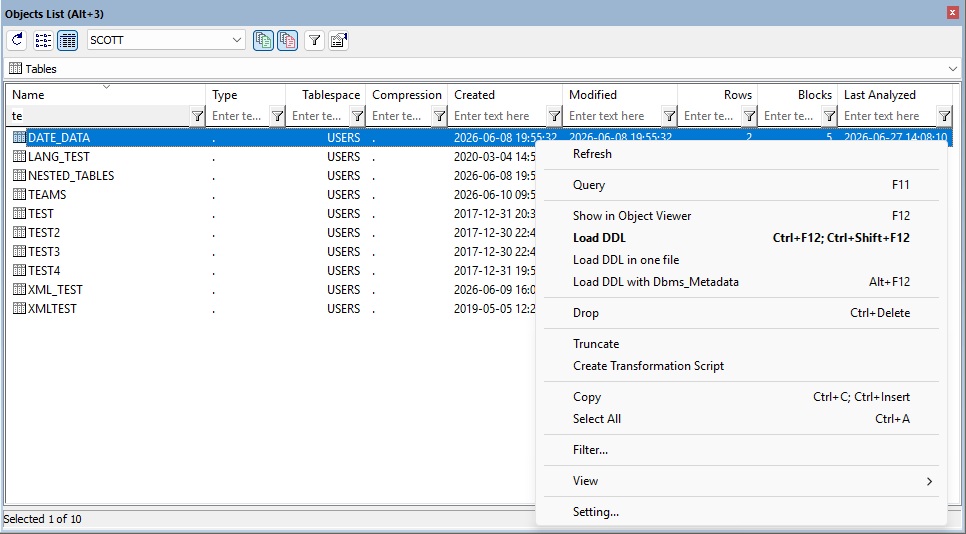
The list supports two display modes:
In detailed mode, every column header includes a filter, allowing you to quickly narrow down the list to the objects you are interested in.
After selecting an object, you can open it in the Object Viewer using:
For users who primarily want to explore the database structure, this is usually all you need.
Object List was originally designed to support basic maintenance tasks with multi-selection. For example:
Check the context menu to see all available operations.
For database exploration, you may prefer to dock the Object List to the left or right side of the main window. You can quickly switch between docking and floating by double-clicking the title bar.
For object manipulation and maintenance tasks, it is recommended to keep the Object List floating and resize it so all columns are visible. You can quickly show or hide the floating window using the Alt+3 shortcut.
You can open the Object List Settings dialog from the context menu.
Show only schemas with objects (slower)
Checked by default. You may want to uncheck this option if expanding the schema dropdown
takes too long.
Object types in a dropdown instead of tabs
Tabs were recently replaced with a dropdown selector, but you can switch back to tabs
if you prefer them, especially in floating mode.
Show icons in object‑type tabs
Displays only icons in the tabs, making them more compact.
Show synonyms without associated objects as invalid
Uncheck this option if switching to synonyms is too slow.
Run query in the active window
When pressing F11 or using the context menu to query a selected table, SQLTools will reuse
the active window and show the result in its data grid. Otherwise, a new window is opened.