Object Viewer is a better alternative to the SQL*Plus DESC command. It is designed to work with the editor.
Press F12 to pass the current word (under the cursor) or selection into Object Viewer. If the cursor is on a
table alias in a SQL statement, SQLTools resolves the alias to its actual table name and opens the viewer for
that table, remembering the alias. You can also enter an object name directly into the top field of Object Viewer.
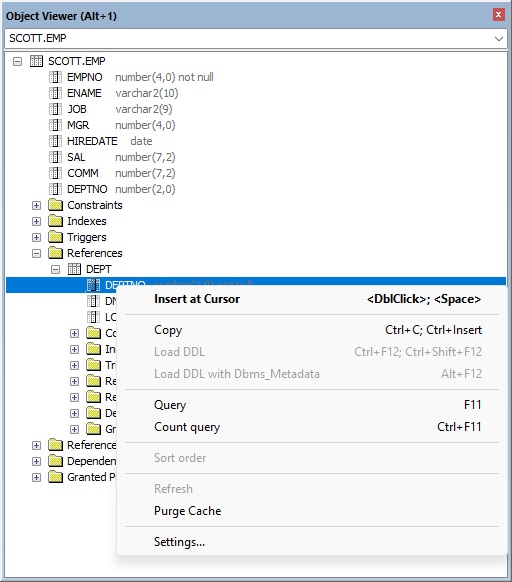
“Insert at Cursor” is the simplest way to use the Object Viewer. Place the cursor where you want to insert text, then double-click an item in the tree, press Space, or use the right-click “Insert at Cursor” menu command. The exact text inserted depends on what is selected.
Note: if double-clicking does not insert anything, check the Settings — this feature may be disabled.
When one or more Column nodes are selected, SQLTools uses an autocomplete-style insertion path. If the selection is a mix of columns and other item types, the non-column items are automatically deselected and only the columns are inserted.
Each column name is optionally prefixed with the table alias. The alias comes from the root table node in the tree. When Object Viewer is opened via F12 on an alias in the SQL text, the actual alias used in the query is remembered and applied automatically — no guessing is required.
If the cursor is already positioned immediately after a dot (e.g. t.), the alias prefix is
omitted from the first column to avoid duplication.
The formatting of the inserted column list is controlled by three Autocomplete Settings:
col1
, alias.col2
, alias.col3
, , on a new line), and trailing-comma style:
col1,
alias.col2,
alias.col3,
If the cursor is on a line that already contains text, SQLTools applies several rules based on the characters immediately before and after the cursor:
These rules prevent duplicated commas or missing separators.
SQLTools also checks whether the characters next to the cursor are alphanumeric:
This ensures the inserted column doesn’t accidentally merge with existing text.
For all other item types (tables, procedures, package procedures/functions, sequences, etc.) the classic insertion path is used:
proc(param1 =>, param2 =>);.
A space is automatically added before the inserted text if the character immediately before the cursor is alphanumeric, and after it if the character immediately after is alphanumeric, preventing the name from merging with surrounding text. The leading space is suppressed when the inserted text starts with a dot (e.g. when only the missing dot before a procedure name is being inserted).
When a single package procedure or package function is inserted, SQLTools checks what already precedes the cursor and inserts only what is missing:
packagename. is already before the cursor — only the procedure name is inserted.packagename is before the cursor but the dot is missing — .procname(params); is inserted.packagename.procname(params); is inserted in full."Drag and Drop" used to be more powerful than "Insert at Cursor" before the latest update, but that’s no longer the case. However, it’s still quite useful because it lets you select multiple items and drop them into the editor with different modifications, depending on the Shift and Control keys pressed.
Depends on <Shift> and <Ctrl>, the result of drag and drop of a single object is summarized in the table:
| Object | Default | <Shift>pressed | <Ctrl>pressed |
|---|---|---|---|
| column | name | name and datatype | same as default |
| constraint | name | columns in line | columns in column |
| container / folder* | name | objects in line | objects in column |
| granted privilege | label | same | same |
| index | name | columns in line | columns in column |
| package spec / body | name | same | same |
| package procedure / function | call with parameters formatted in line | same | call with parameters formatted in column |
| partition / subpartition | name | partition clause | same |
| procedure | call with parameters formatted in line | same | call with parameters formatted in column |
| sequence | name | same | same |
| synonym | name | same | same |
| table / view | name | columns in line | columns in column |
| trigger | name | same | same |
If multiple objects are selected for a drag and drop operation then the default (short name) format is applied to every item.
<Shift> and <Ctrl> are both ignored in the case of multiple selection.
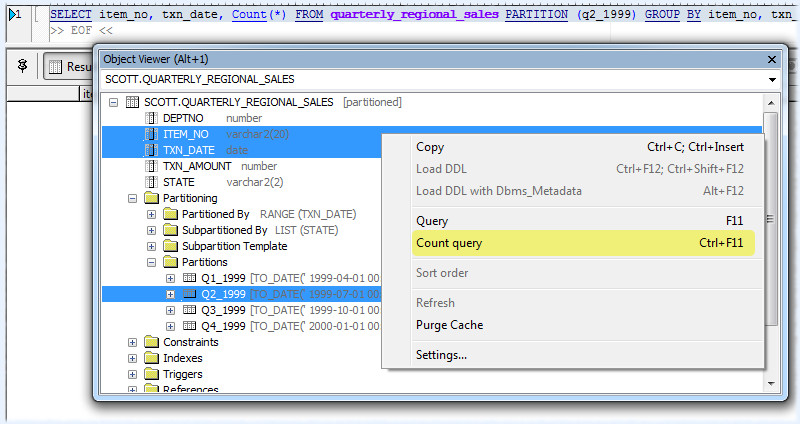
Object Viewer lets you make a quick (count) query from selected table (or partition/subpartition).
You also can select multiple columns belong that table (or partition/subpartition). If no columns are selected, * is used.
However only a single object can be chosen for "FROM" clause so it is either none, table, partition or subpartition.