The Query (result) tab displays a data grid for executed SQL statements and scripts that return data.
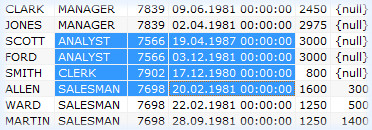
You can select a range by using either the keyboard or the mouse. An entire row or column can also be selected with mouse.
The selected range can be copied either in a default format (one of text, html, sql ...) or chosen the current operation only.
The last can be done with pressing <Shift> while invoking Copy from the context menu.
The same is applied to Export and Open In Editor commands.
Besides the text, HTML and SQL formats, Export can write JSON — one document
holding a meta object with the column names and types and then the rows as objects
keyed by column name, pretty-printed or compact — and a real Excel workbook (.xlsx),
in which numbers stay numbers, a DATE or TIMESTAMP stays a date Excel can sort and filter, and a
NULL becomes an empty cell. Both are chosen in Copy/Export Options. The workbook is a file
format only: the clipboard and Open in Editor carry text, and fall back to CSV.
Right-click the column you want to sort by and choose Sort → Ascending or Descending. An arrow then appears in that column's header, showing both which column is sorted and in which direction: the arrow points down for ascending and up for descending, following the Windows Explorer convention. A check mark in the Sort submenu confirms the direction currently in force.
Sorting reorders the rows already fetched — it does not send the query to the database again — so it takes effect immediately even on a large result set.
Because every cell holds the value the database returned, the order follows the column's data type rather than the text displayed for it:
Rows that compare equal keep their relative order, so sorting the same column repeatedly does not reshuffle them.
If the result set is still being fetched when you ask for a sort, SQL Tools completes the fetch first — a Fetching data, please wait… dialog appears and closes by itself — and only then sorts, so the order you see always covers every row and cannot be contradicted by rows arriving afterwards.
A sort keeps the same screen positions selected rather than following the selected rows to their new places, and clears any row heights you had adjusted manually.
The grid can write to the database directly: change a cell, add a row or delete one, without composing the statement yourself. Every command below is on the grid's context menu under Edit, and the key that reaches it is given with it.
A write has to name one row of one table, so the grid offers editing only where the query gives it both. Three things must hold:
ROWID column — write
SELECT e.*, ROWID FROM emp e instead of SELECT * FROM emp e. Two
ROWID columns, as a join produces, are ambiguous and refuse just as a missing one does;This is all or nothing — a query the test refuses gives a read-only grid, never a partly
editable one, and the commands are simply greyed. Two further rules narrow what you can write:
the ROWID column itself is never editable, being the address rather than data, and a
column whose header is not one bare name — UPPER(x) or t.COL, say
— cannot be updated. Insert and delete also need the normal row-wise orientation; a rotated
(form) grid offers cell editing only.
INSERT.ROWID, so only the row the grid
is showing goes.A staged row holds the cursor on itself until it is posted or discarded, so what you have typed into it cannot be lost, and there is never more than one at a time. Staging a row drops an active sort, which would otherwise move the row out from under the index the post and the discard both name it by.
Only the cells you fill take part in the INSERT: a staged cell left blank is left
out of the statement rather than bound as NULL, so the column's own DEFAULT
answers.
The value you type is sent through the conversion matching the column's type, under the grid's
own display formats — TO_DATE, TO_TIMESTAMP or
TO_NUMBER with the picture the grid showed that value in. What you see on screen is
what lands in the column; the session's NLS settings get no second chance to reinterpret your
text.
Every write runs on a background thread and the grid carries on at once, so the cell keeps showing the old value until the write comes back and the grid repaints it. One write per grid is in flight at a time; a second gesture before the first returns is refused with a message rather than queued, because its values would be shown and never sent.
A write that does not affect exactly one row is a failure, not a success: it is reported and the grid is left as it was. A row deleted elsewhere since the fetch answers 0 rows, and that is the case this catches.
A posted row comes back with the ROWID the server handed it, so it becomes an
ordinary editable row immediately — you can change or delete it without re-running the
query.
The grid does not commit behind your back. Whether a write commits follows the
connection's Autocommit setting; with that off the change stays part of your transaction,
visible to your session only, until you commit it. To take back a write you have not committed,
issue a ROLLBACK and re-run the query.
The grid stores the value the database returned for each cell and renders the text you see from it. Column alignment follows the column's actual data type.
The SQL members of the Copy As submenu — SQL Values, SQL Expression, SQL IN list and SQL Inserts — build their output from those stored values rather than from the text on screen, so what you paste back into the editor reproduces the data you were looking at:
TO_DATE, TO_TIMESTAMP or
TO_TIMESTAMP_TZ with a fixed format, so the literal no longer depends on the NLS
settings of the session that produced it;NULL and is no longer confused with an empty string
— the two are different values, and they now come out differently.Drag and Drop is an essential feature of the data grid. You can drag the context selected cells or column headers and drop into the editor.
<Shift> and <Ctrl> let you choose a desired format:
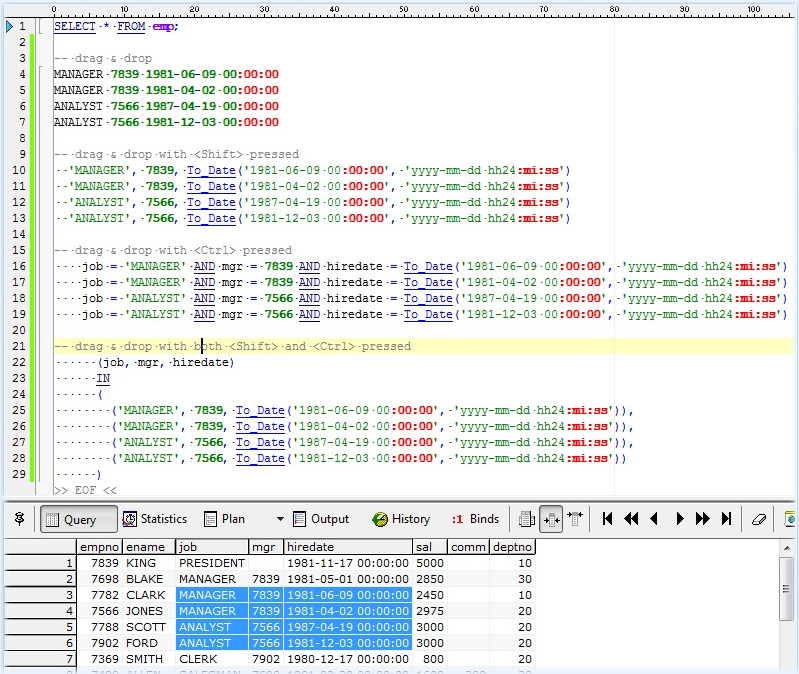
It is worth to mention that dragging the left top corner of the grid in the editor inserts the complete column list.
Hold <Ctrl> and left-click a cell to insert its value into the SQL worksheet editor at the
caret, written as a SQL literal in exactly the form Copy As →
SQL Values produces — dates as TO_DATE calls, numbers
plain and unquoted, and a real NULL as NULL. The same command is available as Insert
SQL Value on the cell's context menu.
Clicking inside a multi-cell selection inserts every cell in it rather than just the one under the
pointer: cells across a row are separated by commas, while a selection spanning several rows writes one
grid row per line and leaves the caret on the line below the inserted text. The whole insert is a single
undo step.
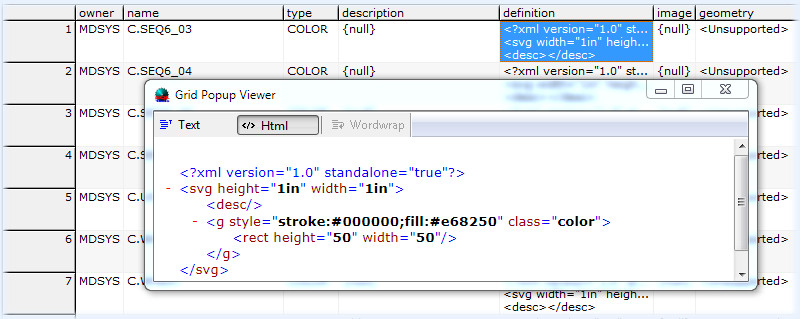
if data grid cell content is not completely visible because of size you might want to see in the Popup Viewer.
The Popup Viewer can be activated with <Alt> + Left mouse button click or Middle mouse button click.